> ## Documentation Index
> Fetch the complete documentation index at: https://docs.twill.ai/llms.txt
> Use this file to discover all available pages before exploring further.
# Automations
> Recurring tasks on a schedule: issue triage, dependency updates, monitoring — set up once, reviewed as PRs.
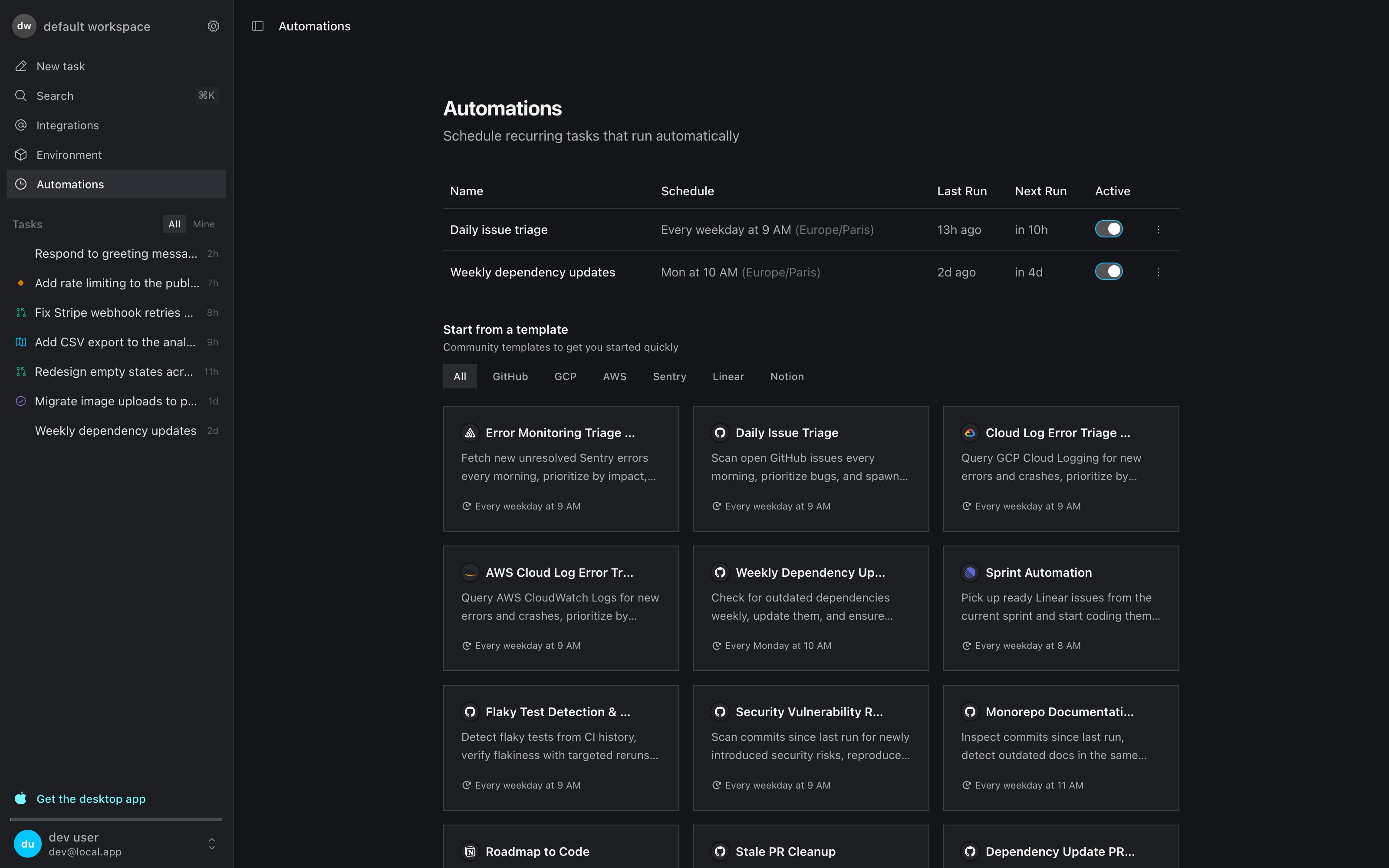
Automations are tasks that run on a schedule. Anything you'd delegate once, you can delegate every morning: triage new issues, update dependencies, watch error trackers, clean up stale PRs. Each run behaves like a normal task — same dev environment, same verification, same PR-based review.
 ## Creating an automation
Open **Automations** in the sidebar and click **New Automation** (or start from a template):
1. Write the instructions, as you would for a regular task.
2. Pick the agent that runs it.
3. Set the schedule — a preset, a weekly picker, or a cron expression — and the timezone.
You can also select **Schedule** mode in the task composer and describe the automation conversationally, or manage automations from the [CLI](/cli#automations) and [API](/api).
Automations pull context from whatever [integrations](/integrations/overview) you've connected: GitHub issues and PRs, Linear sprints, Slack channels, Notion databases, Sentry errors, GCP and AWS logs.
Automations require a paid plan — see [Pricing](/pricing).
## Templates
The template gallery on the Automations page ships ready-made recurring tasks, maintained as a community catalog that grows over time. A sample of what's there:
* **Daily issue triage** — scan open GitHub issues every morning: label, prioritize, spawn fixes
* **Error monitoring triage** — fetch new unresolved Sentry errors and fix the actionable ones
* **Cloud log error triage** — query GCP or AWS logs for new errors and crashes
* **Weekly dependency updates** — update dependencies and verify the build still passes
* **Sprint automation** — pick up ready Linear issues from the current sprint and start coding
* **Flaky test detection** — mine CI history for flaky tests and verify with targeted reruns
* **Stale PR cleanup** — nudge, rebase, or close stale pull requests
Every template is editable before you enable it — they're just task instructions with a schedule.
## Managing automations
Each automation can be **toggled** on/off, **force-triggered** to run now, **edited**, or **deleted**. Every run shows up as a task, so history and artifacts are always reviewable.
Schedules use standard 5-field cron: `minute hour day-of-month month day-of-week`.
| Expression | Meaning |
| ------------- | ------------------------ |
| `0 * * * *` | Every hour |
| `0 */6 * * *` | Every 6 hours |
| `0 9 * * *` | Every day at 9 AM |
| `0 9 * * 1` | Mondays at 9 AM |
| `0 9 * * 1-5` | Weekdays at 9 AM |
| `0 9 1 * *` | First of the month, 9 AM |
## Creating an automation
Open **Automations** in the sidebar and click **New Automation** (or start from a template):
1. Write the instructions, as you would for a regular task.
2. Pick the agent that runs it.
3. Set the schedule — a preset, a weekly picker, or a cron expression — and the timezone.
You can also select **Schedule** mode in the task composer and describe the automation conversationally, or manage automations from the [CLI](/cli#automations) and [API](/api).
Automations pull context from whatever [integrations](/integrations/overview) you've connected: GitHub issues and PRs, Linear sprints, Slack channels, Notion databases, Sentry errors, GCP and AWS logs.
Automations require a paid plan — see [Pricing](/pricing).
## Templates
The template gallery on the Automations page ships ready-made recurring tasks, maintained as a community catalog that grows over time. A sample of what's there:
* **Daily issue triage** — scan open GitHub issues every morning: label, prioritize, spawn fixes
* **Error monitoring triage** — fetch new unresolved Sentry errors and fix the actionable ones
* **Cloud log error triage** — query GCP or AWS logs for new errors and crashes
* **Weekly dependency updates** — update dependencies and verify the build still passes
* **Sprint automation** — pick up ready Linear issues from the current sprint and start coding
* **Flaky test detection** — mine CI history for flaky tests and verify with targeted reruns
* **Stale PR cleanup** — nudge, rebase, or close stale pull requests
Every template is editable before you enable it — they're just task instructions with a schedule.
## Managing automations
Each automation can be **toggled** on/off, **force-triggered** to run now, **edited**, or **deleted**. Every run shows up as a task, so history and artifacts are always reviewable.
Schedules use standard 5-field cron: `minute hour day-of-month month day-of-week`.
| Expression | Meaning |
| ------------- | ------------------------ |
| `0 * * * *` | Every hour |
| `0 */6 * * *` | Every 6 hours |
| `0 9 * * *` | Every day at 9 AM |
| `0 9 * * 1` | Mondays at 9 AM |
| `0 9 * * 1-5` | Weekdays at 9 AM |
| `0 9 1 * *` | First of the month, 9 AM |