> ## Documentation Index
> Fetch the complete documentation index at: https://docs.twill.ai/llms.txt
> Use this file to discover all available pages before exploring further.
# Work from your tools
> Trigger Twill from GitHub, Slack, Linear, Notion, or Asana — and give it read access to your error trackers and cloud.
Twill meets your team where work already lives. Connect a tool once in **Settings → Integrations**, and anyone on the team can hand off tasks from it. Follow-ups stay attached to the same thread — issue, ticket, or comment — so nobody re-explains context.
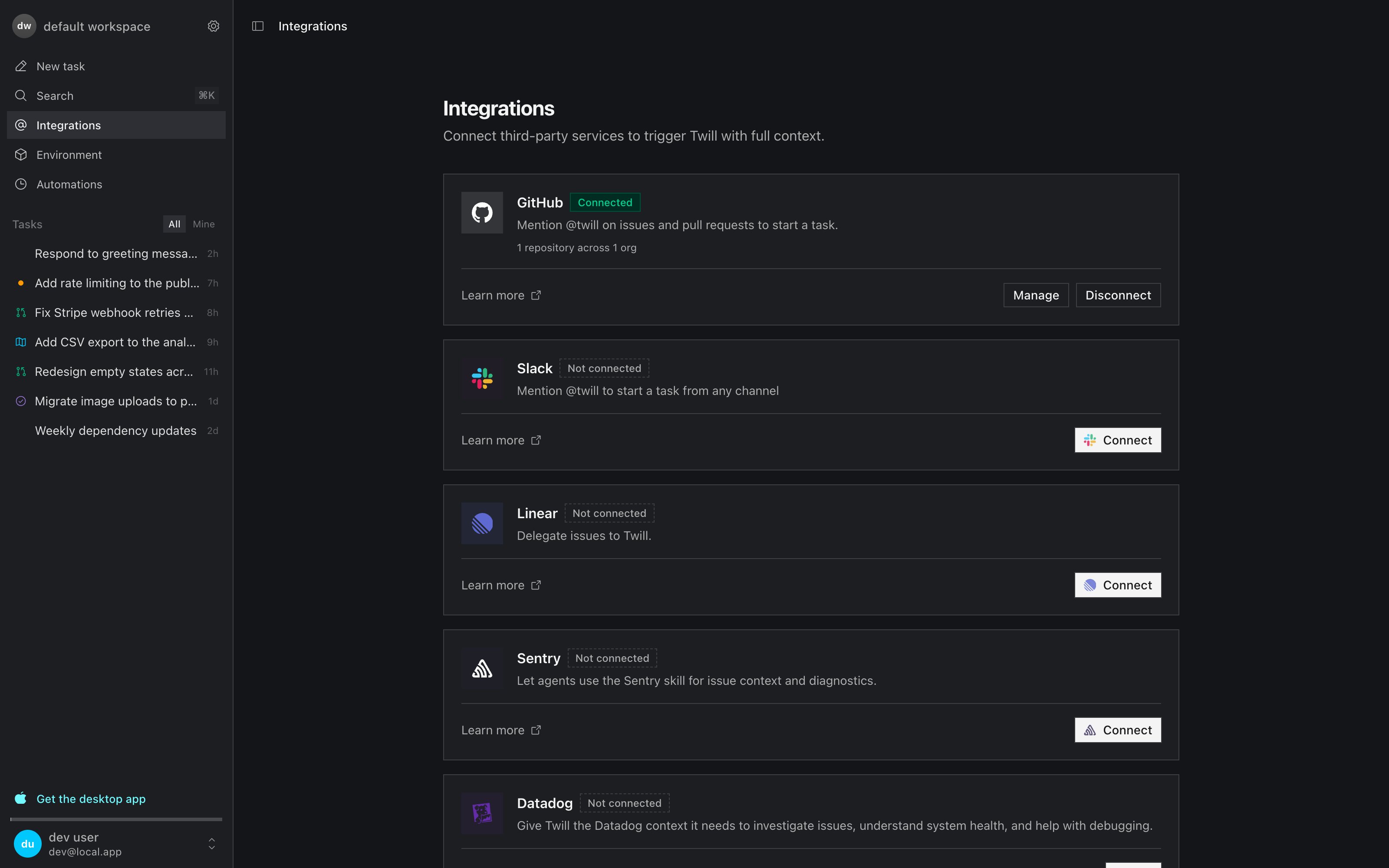 ## Trigger tasks
| Tool | How to trigger |
| ------------------------------------- | ----------------------------------------------------------------------------- |
| [GitHub](/integrations/github-issues) | Mention `@twill` on an issue, PR, or review thread — or add the `twill` label |
| [Slack](/integrations/slack) | Mention `@twill` in any channel or thread |
| [Linear](/integrations/linear-issues) | Add the `twill` label or assign the issue to Twill |
| [Notion](/integrations/notion) | Mention `@twill` in a comment |
| [Asana](/integrations/asana) | Comment `twill ` on a task |
| [Sentry](/integrations/sentry) | Error events flow in as fix proposals |
Wherever the task starts, the result is the same: clarifying questions and plans post back to the thread, and the finished work arrives as a [pull request with proof](/verification).
Start a message with a `/trigger` keyword (like `/plan` or `/ultra`) to pick
the mode, model, and effort for that task — see [routing
configs](/agent-config/routing).
## Give the agent context
These integrations don't create tasks — they give the agent read-only eyes on your infrastructure while it works and powers your [automations](/automations):
| Tool | What the agent can read |
| --------------------------------- | ---------------------------------------------------------- |
| [Datadog](/integrations/datadog) | Monitors, dashboards, host details |
| [Google Cloud](/integrations/gcp) | Cloud Run logs and service status |
| [AWS](/integrations/aws) | Resources, logs, and service metadata (read-only IAM role) |
## Other surfaces
The [web app](/tasks) gives you the full picture — live agent activity, previews, artifacts. The [CLI](/cli) and [API](/api) cover terminals and scripts, and the [desktop & mobile apps](/desktop-app) keep you notified everywhere else.
## Trigger tasks
| Tool | How to trigger |
| ------------------------------------- | ----------------------------------------------------------------------------- |
| [GitHub](/integrations/github-issues) | Mention `@twill` on an issue, PR, or review thread — or add the `twill` label |
| [Slack](/integrations/slack) | Mention `@twill` in any channel or thread |
| [Linear](/integrations/linear-issues) | Add the `twill` label or assign the issue to Twill |
| [Notion](/integrations/notion) | Mention `@twill` in a comment |
| [Asana](/integrations/asana) | Comment `twill ` on a task |
| [Sentry](/integrations/sentry) | Error events flow in as fix proposals |
Wherever the task starts, the result is the same: clarifying questions and plans post back to the thread, and the finished work arrives as a [pull request with proof](/verification).
Start a message with a `/trigger` keyword (like `/plan` or `/ultra`) to pick
the mode, model, and effort for that task — see [routing
configs](/agent-config/routing).
## Give the agent context
These integrations don't create tasks — they give the agent read-only eyes on your infrastructure while it works and powers your [automations](/automations):
| Tool | What the agent can read |
| --------------------------------- | ---------------------------------------------------------- |
| [Datadog](/integrations/datadog) | Monitors, dashboards, host details |
| [Google Cloud](/integrations/gcp) | Cloud Run logs and service status |
| [AWS](/integrations/aws) | Resources, logs, and service metadata (read-only IAM role) |
## Other surfaces
The [web app](/tasks) gives you the full picture — live agent activity, previews, artifacts. The [CLI](/cli) and [API](/api) cover terminals and scripts, and the [desktop & mobile apps](/desktop-app) keep you notified everywhere else.